
As I’ve mentioned before, I view IT as my “trade job.”
Like previous generations of my family, I use practical skills to pay the bills. IT is not my hobby any more than sheet metal was my dad’s or construction work was my grandfather’s.
I approach tech work the same way they approached theirs:
- See a problem
- Figure out the tools and tasks needed
- Solve the issue
- Double-check the work
- Clean up the work area
- Move on
That mindset shaped my career. Folks outside my local shop often appreciated it because I treated systems like shop work. Fix what’s in front of you and keep things running.
The main point here: during some recent downtime and freelance work, I finally tackled a long-delayed personal tech project.
TL;DR: I turned my older but still functional laptop into a Linux Mint Cinnamon machine. I’m very happy with it so far.

“Fix It Felix” from Wreck-It Ralph. Does not look exactly like me.
Problem — A 2019 budget laptop showing its age
There’s a saying: “The cobbler’s kids have terrible shoes.”
My shoes were not terrible; they were just dated. I bought a circa-2019 budget laptop after my 2013 MacBook Pro’s screen failed.
At home, I want to log in, check email, process photos, and write. The MacBook was nearing the end of its support life anyway, and I did not want to spend $1000+ on a replacement when most of my computing happens in a browser, and I do light-to-moderate photo work.
The laptop? An HP Pavilion 15-cw1xxxx. Not great, but good enough. I wanted an appliance I could use without thinking. It shipped with a 128 GB SSD and 1 TB HDD. I upgraded the RAM to 16 GB. For under $400, it served as a capable workhorse for years.
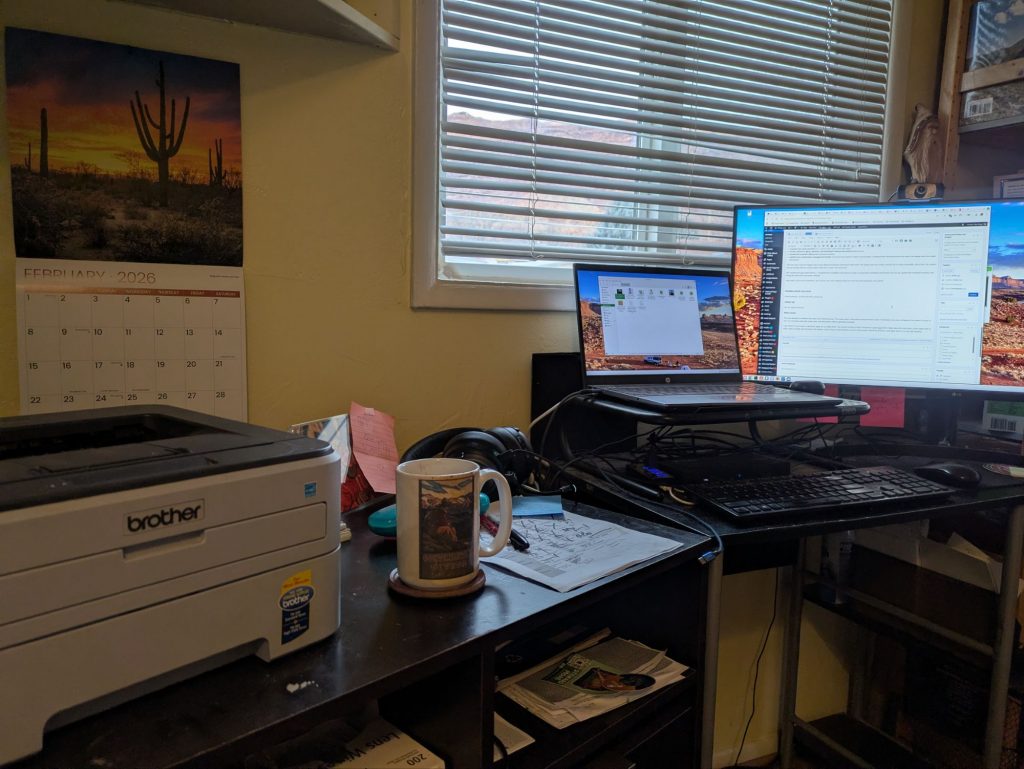
I use it almost permanently docked, so the aging battery matters little. A spare power brick covers occasional off-dock use. My large monitor, webcam, Ethernet, and printer (a circa-2009 Brother laser printer, whose type is semi-legendary) create a stable workstation.
Over the past year, I noticed longer fan runs and general OS bloat. Windows 11 kept growing. Windows 12 loomed. The laptop still did what I needed, but it felt heavier and noisier.
Time for a tune-up.

The key point is that the software I use has not changed in years. Browser tools, VLC media player, LibreOffice-style apps, website tools, and basic photo editing all remained the same across platforms.
So I asked a tradesman’s question:
What is the most cost-effective way to extend this tool’s life?
I did not want a new laptop. I wanted this one to keep working.
Tools and tasks to extend the laptop’s life
- Back up the data drive. My last backup was in October. It was time.
- Clean the fan and vents. Dust bunnies evicted.
- Replace the HDD with an SSD. The mechanical drive worked, but it was slow and aging. SSDs run faster, stay cooler, and are more reliable. For about $100, I reduced the risk of failure and system load.
But the biggest change? I stepped out of the Windows ecosystem for personal use.
I mostly used Windows because the machines shipped with it. Professionally, it remains my bread and butter. Personally, it offered little beyond what you get out of the box. Macs work well, but they cost more and add little for my needs.
I had prior UNIX exposure and used a secondary Ubuntu machine. Terminal work never intimidated me. *NIX systems felt like a second language rather than a strange tongue.
Today’s computing ecosystem also favors web tools over OS-specific software.
So a Linux system made sense to keep this laptop useful. Oh, and the cost of most Linux versions? Free!

Why Linux Mint Cinnamon?
When I set up the laptop, I chose Linux Mint Cinnamon.
Mint builds on Ubuntu, one of the most widely supported Linux distributions. It offers a large software pool and long-term stability while staying relatively light on resources.
That mix of usability, robustness, and modest resource use made Mint attractive. Other Linux options emphasize customization, extreme lightness for very old hardware, or deep technical control (Gentoo, Puppy, Arch), but Mint checked my personal “stable tool” box.
Mint Cinnamon is familiar to longtime Windows users and requires only minor setup.
It often gets labeled “beginner Linux.” I see it differently. It is a set-it-and-forget-it system. Once configured, it keeps working with little fuss. That is exactly what I want. IT is my trade, not my hobby. I prefer tools with minimal futz factor. I want to drink a porter and write, not tweak kernels. 🙂
As one person put it, Mint Cinnamon is a Toyota Corolla. Other distributions resemble sports cars you tinker with on weekends. I wanted a daily driver.

“When I ran the Carfax for this car, I got back a single piece of paper that said, ‘It’s a Corolla. It’s fine.”
Solving the issue — How did it go?
Surprisingly smoothly.
The basic setup:
- Installed Mint from USB onto the 128 GB system SSD.
- Cloned the original data drive onto the new SSD.
- Installed the new data SSD for photos and storage.
- Installed docking drivers for the monitor and ports.
- Installed my usual software (VLC, photo tools, office apps).
- All hardware worked (printer, Ethernet, Wi-Fi, webcam, Bluetooth).
- Disabled cosmetic effects like animated windows.
- Applied light power tuning so the CPU does not spike unnecessarily.
That last step, combined with cleaning the cooling system, produced the biggest day-to-day improvement. The laptop now runs cooler and quieter.
Not counting the pre-install backup, the full migration and setup took less than a casual day.
I went online, accessed all my sites, and started real work immediately. I even wrote this article on the machine.
Double-check — Everyday workflow
My workflow works well. I handled normal tasks, paid bills, printed forms, processed photos, and wrote.
The only hurdle was photo software. I shoot mostly landscape documentation rather than art. I wanted something quick, simple, and capable for light edits.
For years on macOS and Windows, I used Photoscape. It sits between Photoshop-class tools and simple viewers like IrfanView.
I tried several Linux options and found one that fits my workflow.
As a bonus, RAW handling worked without extra codecs or third-party software, unlike Windows. The workflow actually improved.
I am still dialing things in, but I now have a workable photo solution.

From Meme Arsenal
Clean-up — Photo and backup workflow
The photo solution I settled on is ShowFoto. It strikes the right balance without becoming another technical project.
XnView handles batch resizing, quick edits, and watermarks that IrfanView used to handle.
The last clean-up task involves set-and-forget backups. In my professional life, forgetting to back up ranked as a major mistake. I never needed them, but I always felt reassured knowing they existed.
My personal backups stayed haphazard. “OK, I guess it’s time.” Cobbler and shoes. I now follow a monthly schedule using Mint’s native backup utility. After large photo-based trips, I run an immediate backup.
An off-site cloud backup would be ideal but impractical at the moment. My likely next step is a second drive rotated off-site. All in good time.

UPDATE JUNE 2026 –
My backup setup has evolved. I now run two USB drives. An older 1TB drive is stored offsite and brought home monthly for an updated backup. A newer 2TB drive stays local as a second backup and is more futureproof for storage needs. When I eventually upgrade this machine, I’ll add another 2TB external and continue the same pattern.
Why not a cloud backup? I’d rather not pay a monthly fee when a simpler solution handles the amount of data I actually generate. And if I need to recover or move the data, it’s simply a matter of hooking up the drive to any Windows, Mac, or Linux machine.
My photo workflow has settled in well. For Sony ARW files, I run them through RawTherapee first and export them as TIFFs. Other editors struggle with Sony’s RAW format and produce inconsistent results. ShowFoto handles most editing, XnView handles batch resizing and watermarking, and Krita handles occasional fine-tuned work. For Pixel JPGs, I skip the RawTherapee step entirely as I do not need to handle RAW format photos. I could edit the photos in RawTherapee, but I prefer ShowFoto’s interface for the lighter, more naturalistic edits I perform along with its simpler workflow.

From Home Depot
Next issue — How does Mint work for everyday use?
People often ask whether Linux works for typical desktop use.
Linux gets used more than you may think. Source unknown.
As with most things Linux, the answer depends on the distribution and workflow.
Mint installation and setup require some technical comfort. After configuration, however, it works very well for users whose computing centers on web apps, documents, communication, and stable daily tasks. It suits people who value consistency and simplicity.
Many experienced Linux users also settle on Mint as a practical desktop for its stability and familiarity.

Sometimes you just want a DC-3. From Aviation History.
Linux works well for my everyday photo and web work. Users who rely on Adobe-class media tools, the Microsoft environment, or specialized commercial software often remain better served by macOS or Windows.
What about Windows programs on Linux? WINE can run many Windows programs without installing Windows. It’s especially popular with gamers, but reliability varies, and setup often requires tinkering. For most people who just want things to work, native Linux apps remain simpler.
You can also run Windows inside Linux using a virtual machine. It works, but adds complexity and overhead. On a modest laptop, I prefer native tools.
Overall thoughts
I am very pleased with the migration.
I do not expect to return to Windows or macOS for my personal daily driver.
Mint Cinnamon on this machine does what I need with little fuss. Setup took minimal time, and I only need to perform a few tweaks to integrate it into my workflow. The photo workflow still evolves, but I now have a workable long-term solution.
This Mint version has support through 2029, which aligns with my expected retirement window for this laptop. Sometime in 2028, I will likely buy another used machine, repeat the process, and end up again with a decade-old computer that still does the job.

Update – When Joan tried the laptop, she navigated it without hesitation. She later remarked that she sees no reason to buy a Mac next time. Like many people now, her computing happens mostly in the browser. The underlying OS mattered far less than it once did.